Two-Factor Authentication (2FA)
Whizbot supports Time-based One-Time Password (TOTP) two-factor authentication to add an extra layer of security to your account.
How it works
Once 2FA is enabled, you will need to enter a 6-digit code from your authenticator app (Google Authenticator, Authy, etc.) in addition to your password when logging in.
Enabling 2FA
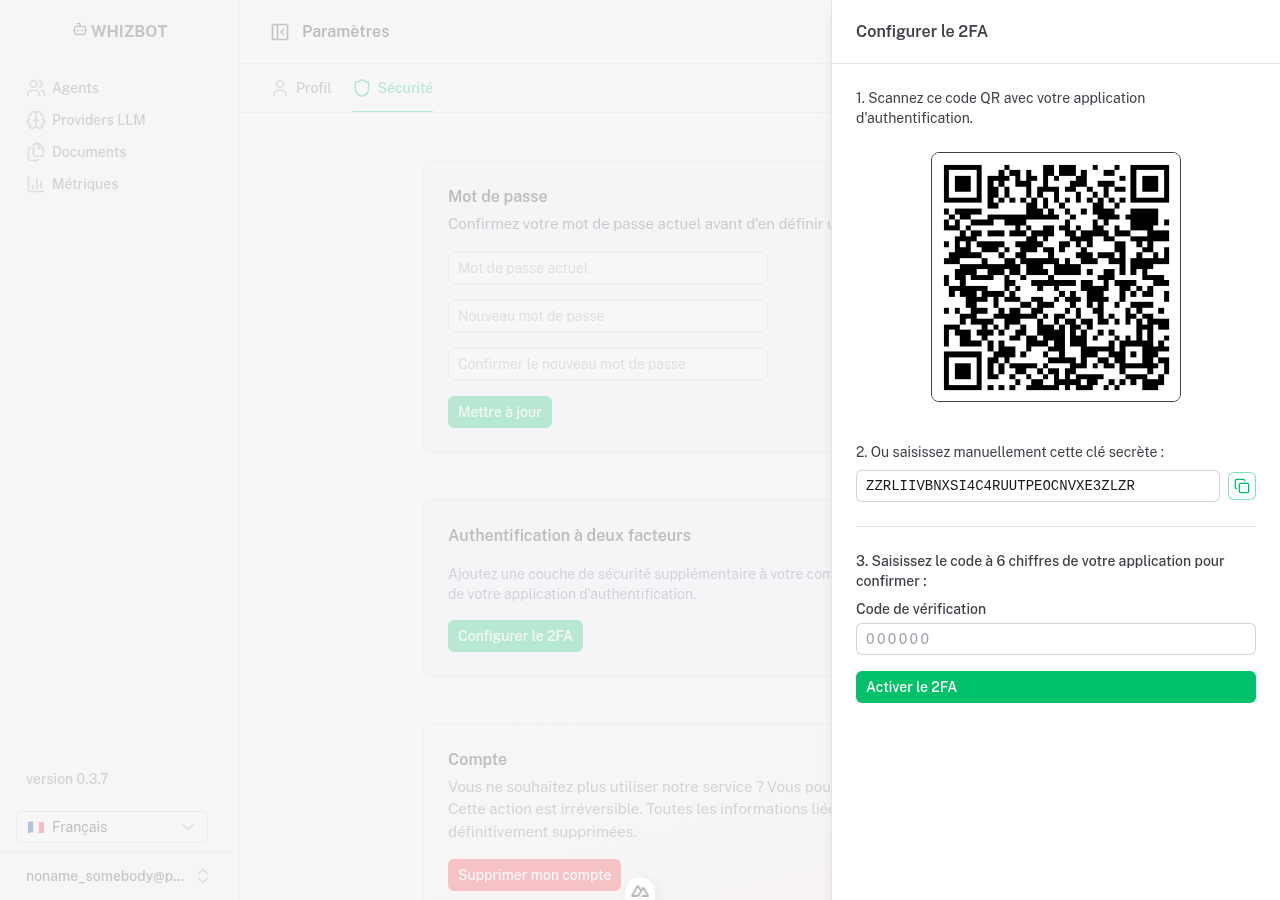
- Go to Settings → Security.
- Click "Configurer le 2FA".
- A slideover will open with a QR code. Scan it with your authenticator app.
- If you cannot scan the QR code, you can manually enter the secret key displayed below it.
- Enter the 6-digit code shown in your authenticator app and click "Activer le 2FA".
Logging in with 2FA
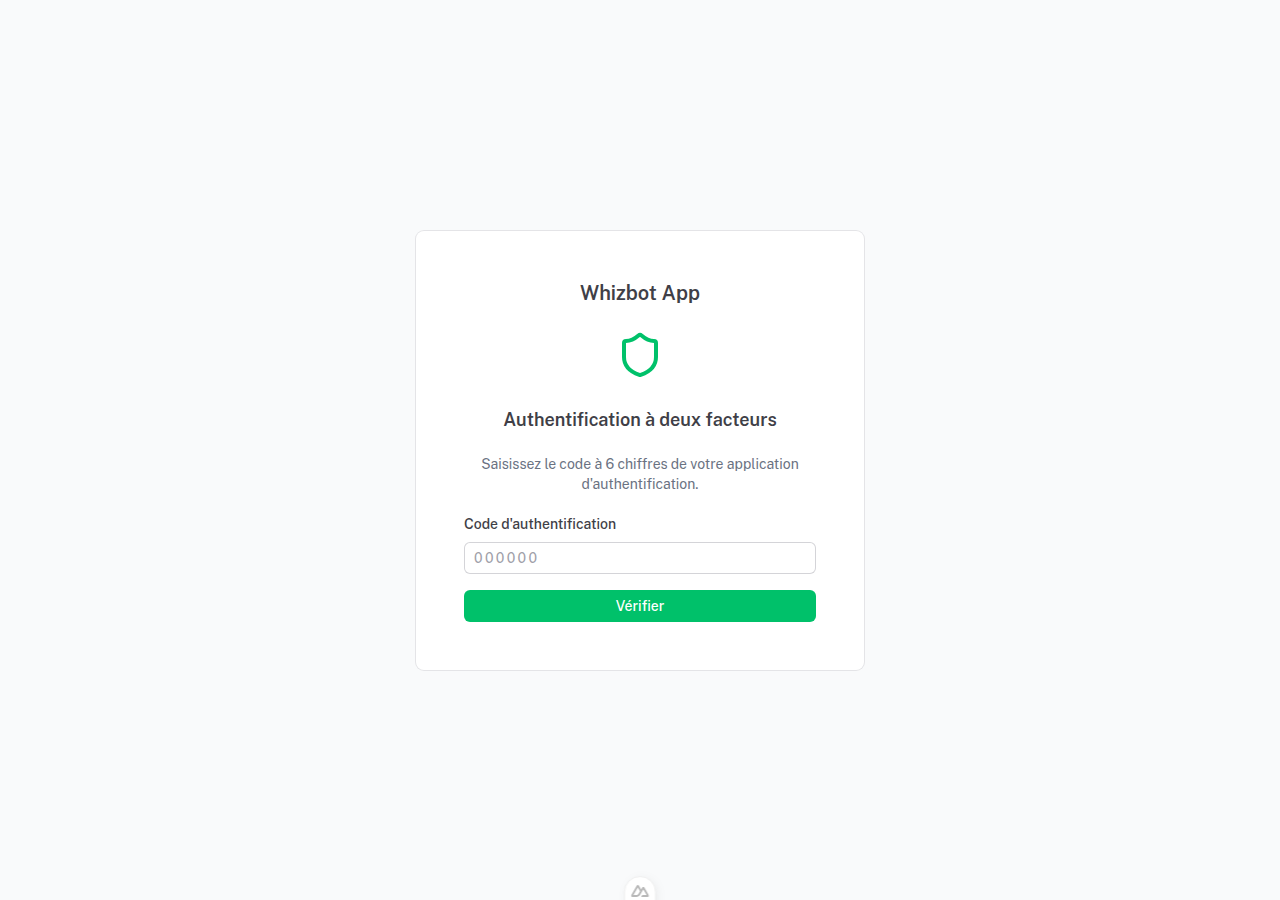
- Enter your email and password as usual.
- If 2FA is enabled, you will be prompted to enter a 6-digit code.
- Open your authenticator app and enter the current code.
- Click "Verify" to complete login.
Disabling 2FA
- Go to Settings → Security.
- Click "Désactiver" next to the "2FA actif" badge.
- Enter your current 6-digit code to confirm.
- Click "Désactiver".
⚠️ Important: Keep your backup codes or ensure you have access to your authenticator app before disabling 2FA. If you lose access, contact support to reset your 2FA settings.
Recovery
If you lose access to your authenticator app and cannot log in, please contact our support team for assistance.